
How to Edit Text in Image with AI Precision: A Comprehensive Review of Haimeta
How to Edit Text in Image with AI Precision: A Comprehensive Review of Haimeta
For decades, graphic designers, marketers, and casual content creators have faced a singular, infuriating problem: How do you edit text in image files once they have been flattened into formats like JPG or PNG? Traditionally, this process involved a tedious workflow of identifying the font, scouring the internet to download a matching typeface, meticulously erasing the old text using clone stamp tools to reconstruct the background, and finally attempting to overlay new text that never quite looks like the original.
That era of frustration is coming to an end. Today, we are reviewing a breakthrough tool that simplifies this entire workflow into a few clicks. The Haimeta Text Editor created by Haimeta offers a streamlined solution that feels less like technical image manipulation and more like magic.
In this article, we will dive deep into how this tool works, why its integration of the Nano Banana2 model is a game-changer, and how it manages to preserve visual consistency where other tools fail.
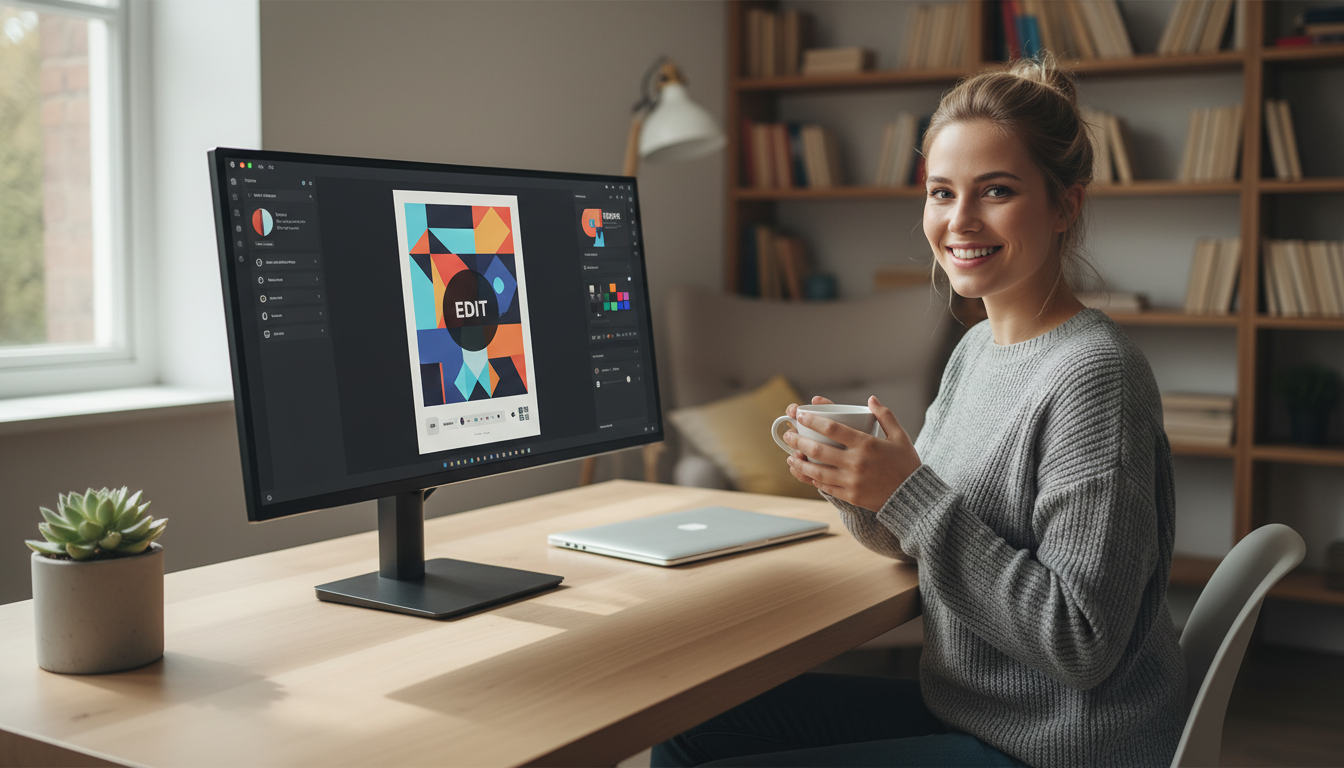
The Challenge of Static Image Text Editing
Before we explore the solution, it is essential to understand why editing text in images is so difficult. Unlike a Word document or an editable PDF, a raster image (like a photograph or a saved design asset) does not treat text as "data." To a computer, the pixels making up the letter "A" are no different than the pixels making up a tree in the background.
When you try to change that "A" to a "B," you aren't just typing; you are painting. You have to destroy the existing pixels and generate new ones. This leads to three major hurdles:
- Font Matching: If you don't have the exact font file, your edit will stand out like a sore thumb.
- Background Integrity: Removing the old text often leaves a "hole" in the image. If the text is over a gradient, a texture, or a complex photograph, filling that hole seamlessly is incredibly difficult.
- Perspective and Lighting: Text in images often has shadows, gradients, or perspective tilts. Replicating these effects manually requires advanced Photoshop skills.
Enter Haimeta: A New Standard for Text Replacement
The Haimeta Text Edit Module addresses these challenges head-on. Unlike complex desktop software that requires a steep learning curve, Haimeta operates on a simple premise: Upload, Describe, and Create.
The core value proposition here is high-precision modification. This isn't just about covering up old words; it's about rewriting reality within the image frame. Whether you are fixing a typo on a menu, changing a price on a promotional banner, or translating a comic strip, the tool ensures that the new text inherits the DNA of the old text.
The Core Workflow
Using the tool is deceptively simple, hiding the complex algorithmic work happening under the hood. Here is the typical workflow:
- Upload: You drag and drop your image into the browser-based interface.
- Instruction: You simply tell the system what you want to change. For example, "Change the date from 2023 to 2024" or "Replace 'Sale' with 'Sold Out'."
- Creation: You click "Create," and the AI processes the request.
There is no need to manually select fonts or adjust kerning. The system analyzes the existing pixel data to determine the font weight, style, color, and size automatically.
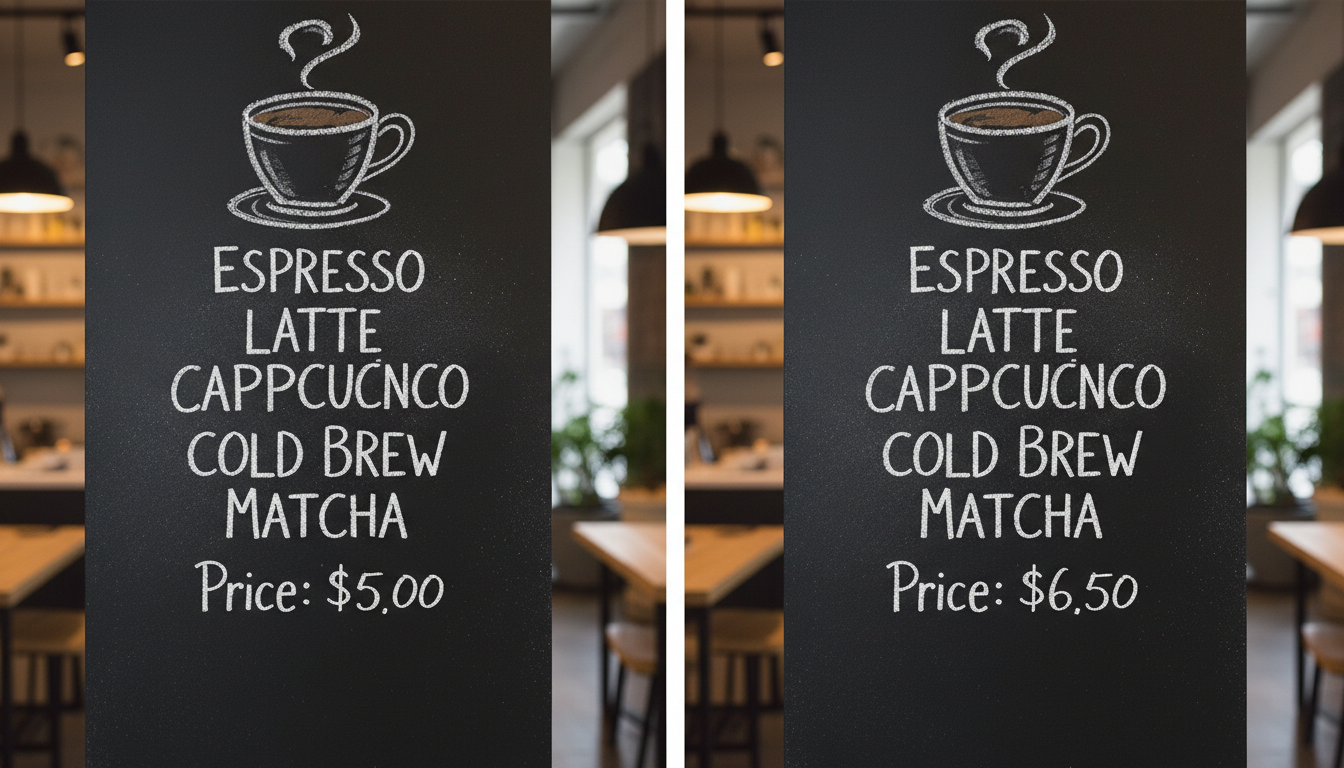
Powered by Nano Banana2: The Engine Behind the Magic
While we promised not to bore you with excessive technical jargon, it is crucial to mention the engine that drives this high-fidelity performance: Nano Banana2.
Haimeta has integrated this latest iteration of image processing models to handle the subtle nuances of visual reconstruction. Many earlier AI inpainting tools struggled with text because text requires sharp lines and high contrast. A blurry tree in a background looks fine; a blurry letter looks fake.
Nano Banana2 excels in two specific areas:
1. Font Consistency and Style Transfer
When you ask Haimeta to edit text in image areas, Nano Banana2 doesn't just paste a standard Arial or Times New Roman font over the image. It analyzes the surrounding characters. It looks at the "glyphs" of the original text to understand the serifs, the stroke width, and the specific anti-aliasing used in the original image.
The result is that when you change a word, the new word looks like it was there when the photo was taken. If the original text was slightly distressed, the new text will be distressed. If the original text had a drop shadow, the new text will cast the same shadow.
2. Background Context Preservation
Perhaps the most impressive feat of the Haimeta tool is how it handles the space behind the text. When the AI removes the old letters to make room for the new ones, it must hallucinate what should be behind them.
If your text is written over a patterned tablecloth or a complex gradient, Nano Banana2 predicts the continuation of those patterns with remarkable accuracy. This ensures that there are no "smudge marks" or digital artifacts surrounding your new text. The surrounding elements remain untouched and consistent, maintaining the professional look of your creative assets.
Real-World Use Cases
Who benefits most from this technology? The applications are vast, but here are a few scenarios where Haimeta shines:
- E-Commerce Managers: quickly updating prices on hundreds of product images without needing the original PSD source files.
- Social Media Marketers: Repurposing high-performing content for different regions by translating text or updating dates for recurring events.
- Graphic Designers: Fixing last-minute typos in flattened proofs sent by clients, saving hours of reconstruction work.
- Meme Creators: modifying captions seamlessly to create high-quality, authentic-looking viral content.
Why Haimeta Stands Out
In a market flooded with "AI Magic Erasers," the specific focus on text replacement sets Haimeta apart. Most tools are designed to remove objects (like a tourist from a landscape). Removing an object is easier because the brain is forgiving of organic textures filling the void.
Replacing text is unforgiving. If the baseline of the text is off by a few pixels, or the font weight is slightly too bold, the human eye detects the forgery immediately. Haimeta’s focus on textual precision—maintaining consistency in font, alignment, and surrounding visual elements—makes it a professional-grade utility rather than just a novelty toy.
Furthermore, the interface avoids the "tech-heavy" aesthetic often associated with AI tools. It is clean, approachable, and designed for efficiency. You don't need to be a prompt engineer to get results; you just need to know what you want the text to say.

Step-by-Step Walkthrough: Achieving the Perfect Edit
To ensure you get the best results when you visit the Haimeta Text Editor, follow these best practices:
- Ensure Image Clarity: While Nano Banana2 is powerful, it works best on images where the text is legible. Extremely blurry or pixelated text may yield lower precision results.
- Be Specific: When inputting your text modification request, be clear. If you want to change "Apple" to "Orange," simply state that. The model is smart enough to infer the capitalization and style from the image context.
- Review the Surroundings: After the generation, check the edges of the text. Haimeta prides itself on keeping surrounding elements consistent, so look for how well the background pattern flows through the new letters.
Conclusion: The Future of Image Text Editing
The ability to edit text in image files effortlessly changes the landscape of digital asset management. It liberates content from the format it was saved in, making static images dynamic and adaptable.
By leveraging the advanced capabilities of the Nano Banana2 model, Haimeta has created a tool that solves a specific, painful problem with elegance and precision. It eliminates the need for complex Photoshop layering and font matching, democratizing high-end editing for everyone.
Whether you are a professional designer looking to speed up your workflow or a business owner needing to update a flyer, the Haimeta Text Editor offers a solution that prioritizes quality, consistency, and ease of use. Stop rebuilding images from scratch; simply upload, edit, and create.
Ready to transform your static images? Try the Haimeta Text Editor today and experience the power of seamless AI text modification.