
The Ultimate 2026 Guide to Expand Image for YouTube Thumbnail Without Cropping
The Ultimate 2026 Guide to Expand Image for YouTube Thumbnail Without Cropping
Welcome to 2026! If you are a content creator, you already know that the YouTube landscape is more competitive than ever. Your video could have Hollywood-level production quality, but if your thumbnail does not immediately grab a viewer's attention, your masterpiece might never be seen. The thumbnail is the digital front door to your content. However, we have all run into the same frustrating problem: you snap the perfect photo for your video cover, but it is in a 1:1 square format (maybe from your Instagram feed), or a 9:16 vertical format (from a TikTok or Short). YouTube, however, strictly demands a 16:9 aspect ratio for its video thumbnails.
So, what do you usually do? Traditionally, you are forced to crop the image. You zoom in, chop off the top of your head, lose the beautiful background, and essentially ruin the context of the photo just to make it fit the 16:9 box. It is a heartbreaking compromise. But what if I told you that cropping is a thing of the past? Today, we are going to explore exactly how you can expand image for YouTube thumbnail sizes flawlessly. We will bypass the technical jargon and focus purely on practical, everyday magic that keeps your photos looking natural and engaging.
The Aspect Ratio Dilemma: Why Traditional Cropping Ruins Great Photos
Imagine this scenario: you are a travel vlogger, and you just took a stunning 1:1 square selfie in front of the Eiffel Tower. Your smile is perfect, the lighting is golden, and the framing is tight. When you upload this to your video editing software to create your thumbnail, you realize you need it in a wide 16:9 format. To make it fit, you pull the corners to expand the image across the canvas. Suddenly, the top of the Eiffel Tower is gone. Half of your face is clipped. The essence of the photo has been completely destroyed.
Traditional cropping forces you to sacrifice content for dimensions. When you crop a 1:1 image to fit a 16:9 frame, you are throwing away almost half of your original visual data. In the fast-paced world of 2026 YouTube algorithms, where visual storytelling is paramount, losing that context means losing potential clicks. Viewers want to see the environment, the emotion, and the subject clearly. They do not want to see a claustrophobic, awkwardly zoomed-in face.
Enter the Future: How AI Expands Your World
The solution to this age-old problem is remarkably simple and incredibly powerful. Instead of cutting away your image to fit a wider frame, you can now generate the missing parts of the picture. When you need to expand image for YouTube thumbnail formats, Artificial Intelligence steps in to act as your personal digital artist.
Here is the core magic: you upload a picture, and the AI automatically understands the content of your image. It looks at the lighting, the textures, the colors, and the context. Then, it seamlessly extends the background outwards to fill whatever dimensions you need. If you have a 1:1 picture, the AI will build out the left and right sides to perfectly create a 16:9 masterpiece.
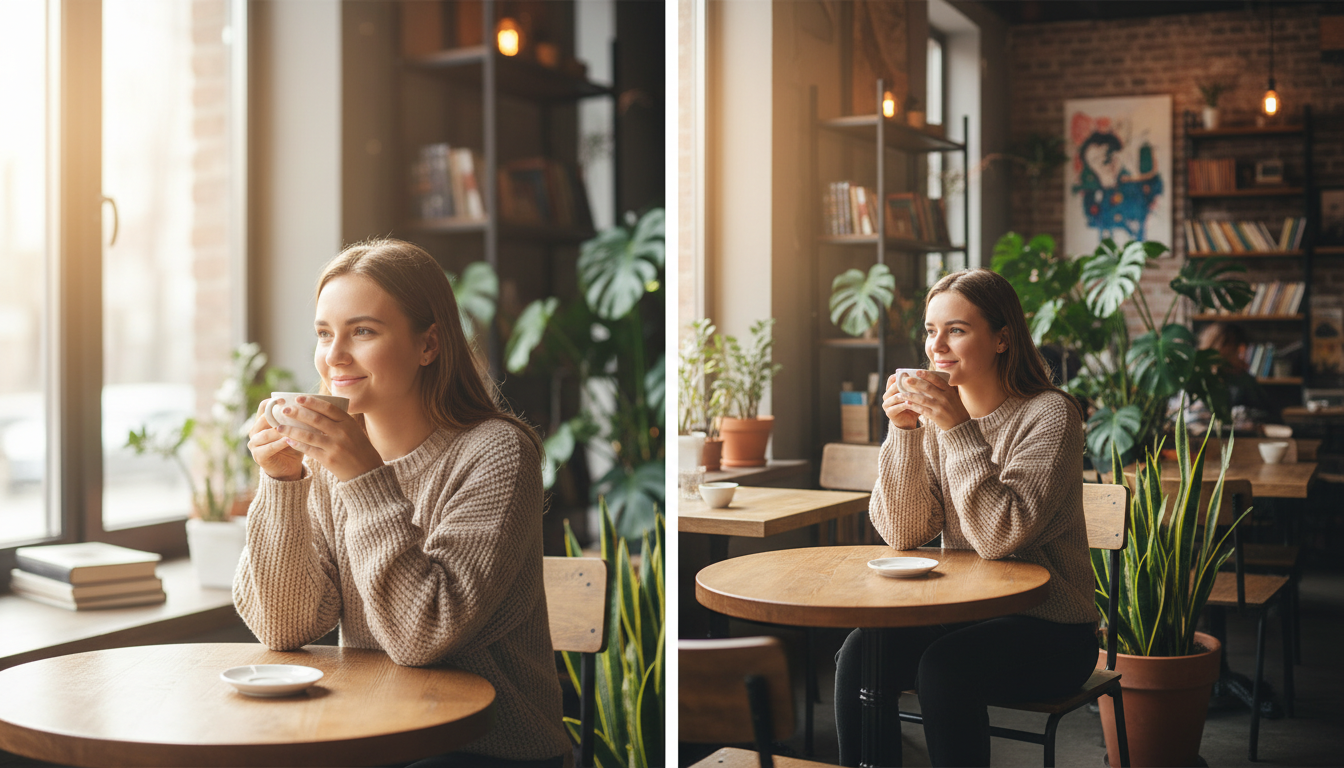
And the best part? Your original subject is perfectly preserved. There is no zooming, no cutting, and no loss of quality. If you are sitting in a cozy cafe in your original photo, the AI will generate more of that beautiful cafe around you—more wooden tables, more glowing string lights, perhaps a realistic window with a view. It does not just stretch the pixels; it creatively imagines what exists just outside the frame of your original camera lens.
The Best Tool for the Job
When it comes to executing this seamlessly without needing an advanced degree in graphic design, you need a tool that is intuitive, fast, and highly realistic. This is where we highly recommend using HaiMeta AI Expand created by HaiMeta.
This platform has mastered the art of lifestyle and realistic image expansion. Unlike older, clunky software that required you to paint masks or type complex, robotic "data-stream" prompts, this tool is designed for everyday creators. You do not need to understand the underlying technical frameworks or neural network pathways. You just need to know what you want your thumbnail to look like. The interface is incredibly friendly—upload, click, and watch your photo grow.
Step-by-Step: How to Expand Image for YouTube Thumbnail
Let us walk through exactly how you can transform a restrictive square photo into a cinematic 16:9 YouTube thumbnail using this technology.
Step 1: Select Your Core Image
Choose the photo that features the strongest emotion or the clearest subject. Remember, the subject will remain untouched. If you are baking a cake, find the photo where the cake and your expression look the best, even if the photo is in a 3:4 or 1:1 ratio.
Step 2: Upload to the Platform
Head over to HaiMeta AI Expand created by HaiMeta. Simply drag and drop your chosen photo into the workspace. The friendly interface will immediately recognize your image and prepare it for expansion.
Step 3: Choose the 16:9 Aspect Ratio
Since our goal is to expand image for YouTube thumbnail specifications, look for the aspect ratio settings and select 16:9. This tells the AI exactly how much canvas it needs to fill on the sides of your original photo.
Step 4: Let the Magic Happen
Hit the expand button. Within seconds, the AI analyzes your cafe, your kitchen, or your outdoor park, and paints the rest of the scene. It understands shadows, perspective, and depth of field.
Step 5: Add Your Text and Upload
Once you download your newly expanded 16:9 image, you will notice you now have beautiful, clean, negative space on the left or right side of your subject. This is the absolute perfect place to add your bold, catchy YouTube text! Because you expanded the image instead of cropping it, your text will not block your face or the main subject.
Real-World Scenarios: Why This Changes Everything
To truly grasp how beneficial it is to expand image for YouTube thumbnail creation, let us look at three common creator scenarios in 2026.
Scenario 1: The Lifestyle Vlogger
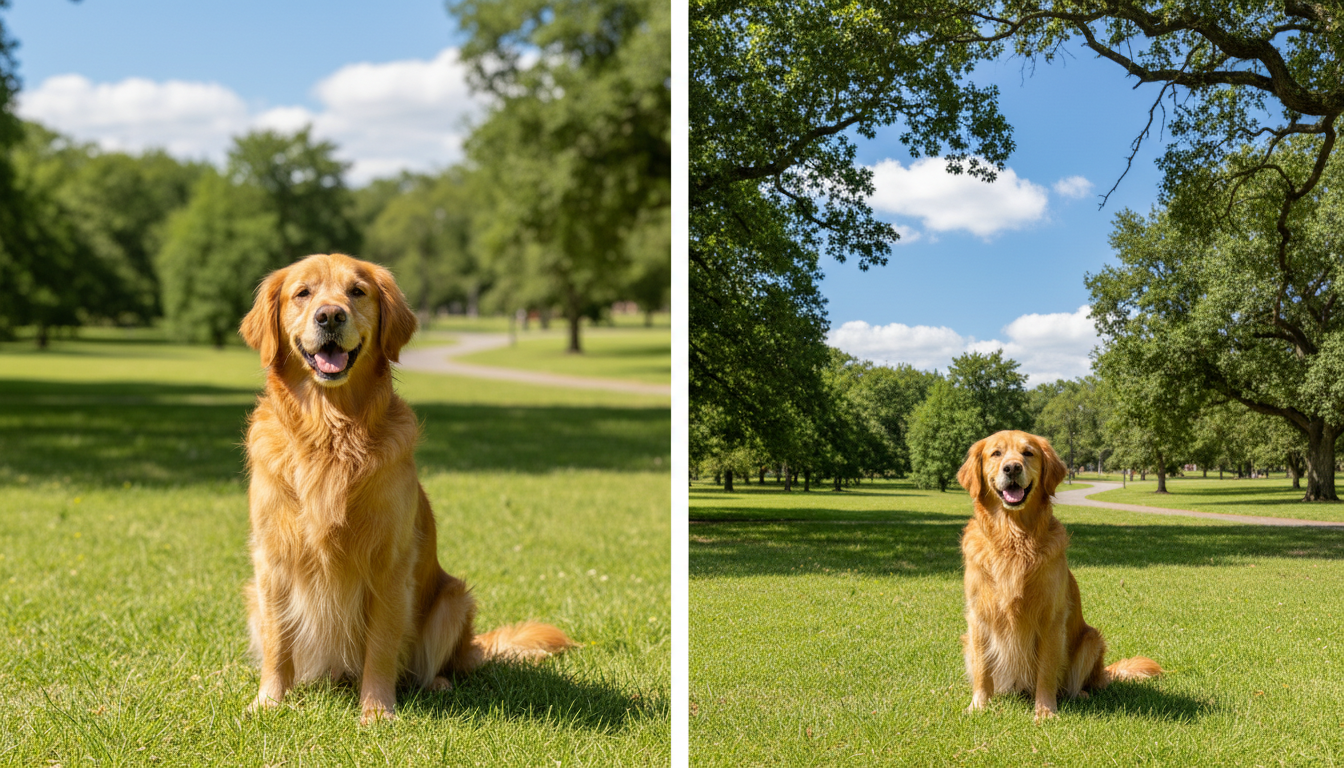
You took a gorgeous portrait-mode photo (9:16) on your smartphone while walking your golden retriever in the park. The dog looks incredibly cute, but the photo is tall and narrow. By using AI to expand the image to 16:9, the AI fills in the sweeping green grass, the large oak trees on the left, and a sunny blue sky on the right. Your golden retriever stays perfectly sharp in the center, and you now have a stunning cinematic thumbnail that looks like it was shot on an expensive wide-angle lens.
Scenario 2: The Cooking Channel
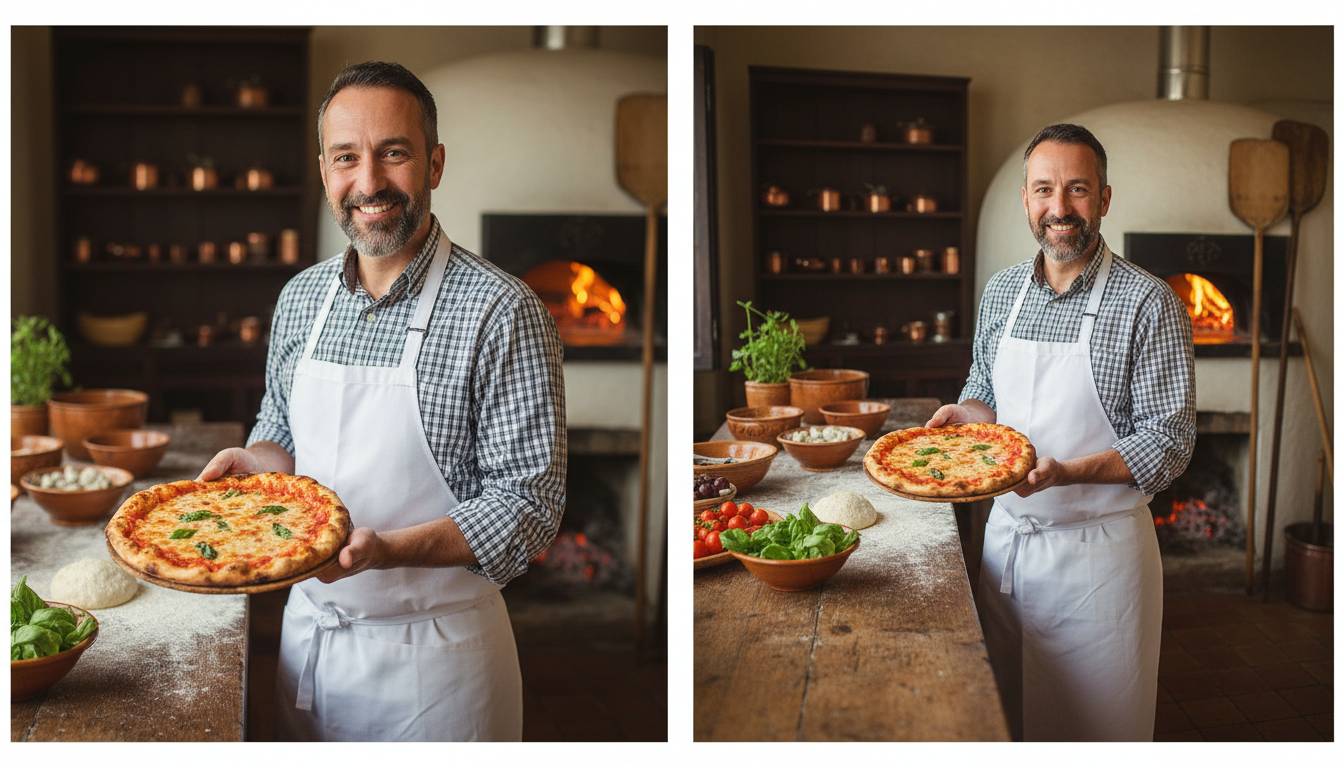
You snapped a square 1:1 Instagram photo of a beautiful pizza you just pulled from the oven. For YouTube, cropping would mean chopping off the edges of the pizza crust. By expanding the image, the AI generates more of your rustic kitchen counter, perhaps adding a blurry rolling pin or some scattered flour in the background. The pizza remains whole and mouth-watering, while the expanded background creates the perfect atmosphere.
Scenario 3: The Tech Reviewer
You have a close-up, square shot of a new smartphone resting in your hand. If you zoom in for a 16:9 cut, you lose your fingers and the context of holding it. By expanding the image, the AI realistically extends your desk environment—maybe generating a tasteful plant, a cup of coffee, or some nice wooden desk textures on the sides. You now have the perfect negative space to write "DON'T BUY THIS UNTIL YOU WATCH!" without covering the product.
The Psychology of a Perfect Thumbnail
Why go through the effort to expand image for YouTube thumbnail formats rather than just using a solid color background with a cut-out of your face? In 2026, YouTube viewers crave authenticity and context. A solid color background often looks spammy or overly commercial. A fully integrated, realistic environment feels genuine. It tells a story before the viewer even clicks the video.
When the AI extends your cafe background, it sets a mood. It tells the viewer, "This video is going to be a cozy, relaxed chat." When it extends your outdoor travel shot, it promises adventure. By keeping your original image completely intact and simply building the world around it, you are preserving the soul of your photograph while meeting the strict formatting demands of the platform.
Conclusion: Stop Cropping, Start Expanding
We have officially moved past the era of sacrificing our best photos to fit into a required box. The next time you find yourself staring at a brilliant square photo, wondering how you can possibly make it work for your channel, remember that you no longer have to compromise.
To expand image for YouTube thumbnail creation is to unlock a new level of creative freedom. You retain your original subject, maintain the highest visual quality, and generate beautiful environmental space that is practically begging for your bold typography.
Ready to elevate your click-through rates and make your channel look more professional than ever? Stop cropping away your best moments. Give your photos the wide-angle treatment they deserve. Head over to HaiMeta AI Expand created by HaiMeta today, upload that perfect shot, and watch your creative world expand in seconds. Happy creating!