
Edit Text in Image with AI: The Ultimate Guide to Seamless Corrections
Edit Text in Image with AI: The Ultimate Guide to Seamless Corrections
Have you ever captured the perfect photograph, only to realize later that a sign in the background ruins the composition? Or perhaps you work in marketing and need to update a price tag on a product image without organizing an entirely new photoshoot. Historically, fixing text within an image was a nightmare. It required advanced Photoshop skills, hours of cloning, stamping, and font matching, and often, the result still looked artificial.
Welcome to the future of digital editing. Today, the ability to edit text in image files is no longer reserved for graphic design wizards. With the rise of generative AI, you can now swap words, correct typos, and update numbers in seconds, all while keeping the original aesthetic perfectly intact.
In this comprehensive guide, we will explore how Haimeta's Text Editor, created by Haimeta, is revolutionizing this process. We will dive deep into the technology behind it—specifically the cutting-edge Nano Banana2 model—and show you exactly how to transform your visuals without breaking a sweat.
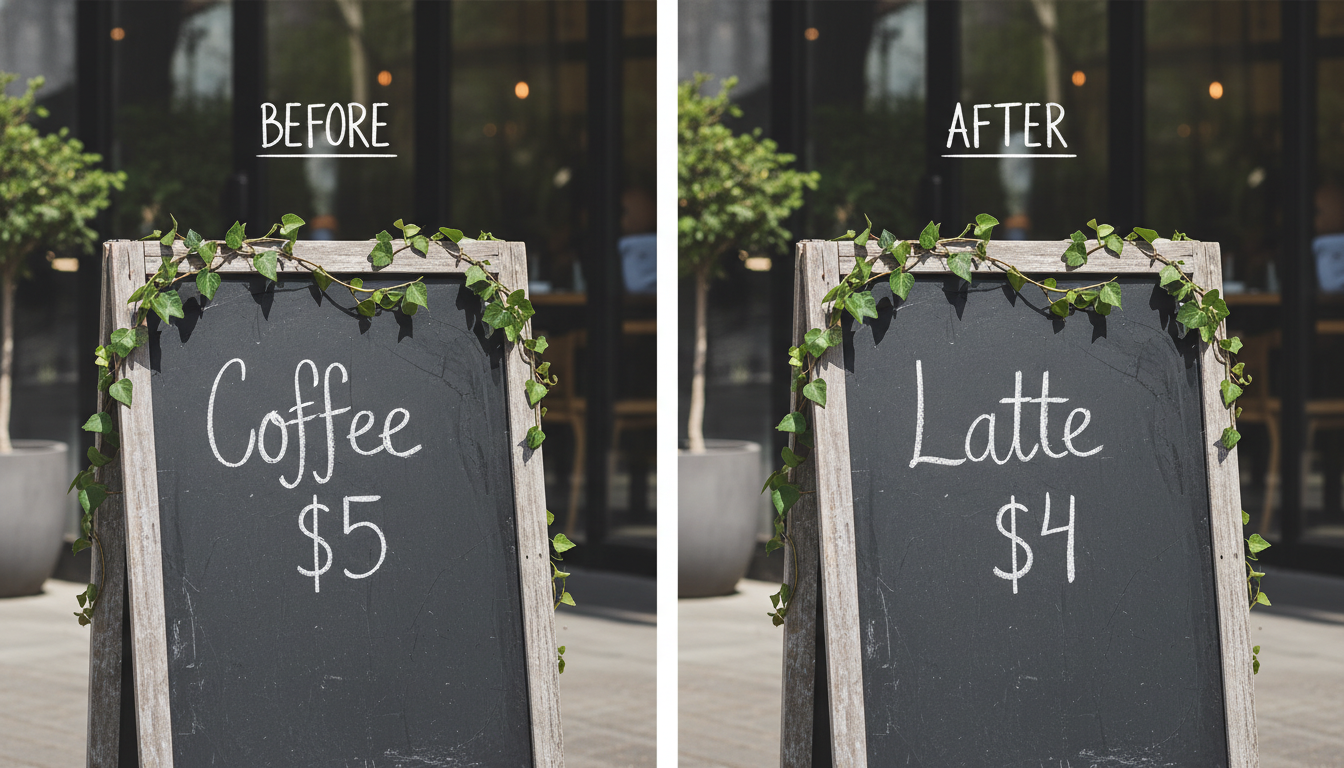
The Evolution of the Image Text Editor
To understand why modern tools are such a breakthrough, we must first look at the struggle of traditional editing. In the past, if you wanted to change "Sale 50%" to "Sale 70%" on a banner image, you had to:
- Erase the old text: Carefully use a clone stamp tool to paint over the numbers with background texture.
- Find the font: Spend hours browsing font libraries to find something that vaguely matched the original typography.
- Adjust perspective: Warping the text layer to match the angle of the object.
- Fix lighting: Manually adding shadows, grain, and blur to make the new text blend in.
Even with skill, the "seams" often showed. The background might look smudged, or the font weight might be slightly off, instantly signaling to the viewer that the image was doctored.
Enter Nano Banana2: A Paradigm Shift
The game has changed. Haimeta has integrated the latest image generation model, Nano Banana2, into its platform. Unlike traditional editing software that treats an image as a collection of pixels to be pushed around, Nano Banana2 understands the semantics of the image.
It doesn't just "paste" new text over the old. It looks at the existing font style, the lighting direction, the surface texture (be it paper, metal, or wood), and the perspective. When you ask it to edit text in image, it regenerates the specific area you selected, synthesizing new pixels that look as if they were there when the photo was taken.
Core Selling Points: Why Haimeta Stands Out
When looking for an image text editor, you need reliability and visual fidelity. Here is why Haimeta's solution is becoming the go-to tool for creators and professionals.
1. Zero Deformation of Surroundings
One of the biggest fears when using AI editing tools is the "warping" effect. Early AI models often hallucinated, morphing a square sign into a circle or melting the hands of a person holding a document.
Haimeta's integration of Nano Banana2 ensures strict structural integrity. If you are editing text on a T-shirt, the folds of the fabric remain unchanged. If you are changing a street sign, the pole and the sky behind it remain untouched. The model focuses exclusively on the semantic instruction you provide regarding the text.
2. Perfect Font and Style Matching
You do not need to know the name of the font used in the original image. You don't need to upload a font file. The AI analyzes the visual patterns of the existing characters—their serifs, thickness, kerning, and color—and generates the new text to match.
- Scenario: You have a neon sign that says "Open" in glowing red cursive. You want it to say "Closed."
- Result: The AI generates "Closed" in the same glowing red cursive, including the light bloom against the brick wall.
3. Simplicity: No Tech Skills Required
We are moving away from complex node-based workflows or "hacker-style" interfaces with scrolling data streams. Haimeta prioritizes a friendly, human-centric user experience. You don't need to adjust threshold sliders or mask feathers. You simply speak to the AI.
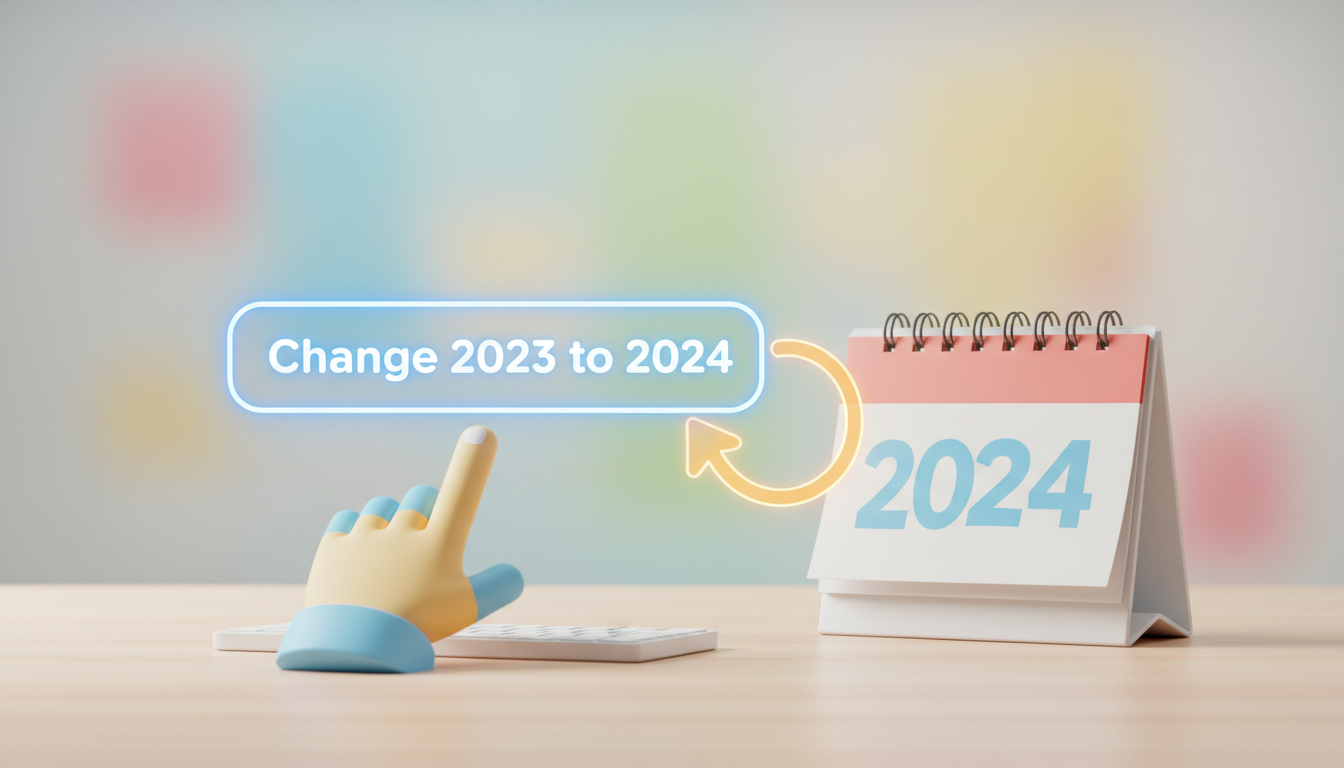
How to Edit Text in Image with Haimeta
Ready to try it out? The process is incredibly straightforward. Here is a step-by-step tutorial on how to use the Haimeta Edit Module.
Step 1: Upload Your Image
Navigate to the tool and upload the image you wish to modify. High-resolution images work best, as they give the Nano Banana2 model more detail to work with, but the tool handles standard web-resolution images exceptionally well too.
Step 32: Tell the AI What to Change
This is the magic moment. You don't need to write code. Just type a natural language prompt.
- Example Prompt: "Change the text on the coffee cup from 'Monday' to 'Friday'."
- Example Prompt: "Update the year on the calendar to 2025."
Step 43: Click Create
Hit the button and watch the result. Within moments, the AI processes the request using the Nano Banana2 architecture.
Pro Tip: Always look at the before and after. The hallmark of a great edit is that the "After" image looks like an original photograph, not a photoshop job.
Real-World Use Cases
Who actually needs an AI image text editor? It turns out, almost everyone creating digital content can benefit from this technology.
E-Commerce and Global Marketing
Imagine you have product photos of a skincare bottle with labels in English. You want to launch in a Spanish-speaking market. Reshooting the product is expensive. Using Haimeta, you can translate the label text directly on the bottle surface, preserving the glossy reflections and cylindrical curve of the bottle.
Social Media Content Creation
Memes and social graphics move fast. Sometimes you find the perfect template, but the text isn't relevant to your audience. Instead of plastering a white box over the old text (which looks amateurish), you can replace the text seamlessly. It keeps your feed looking professional and high-quality.
Graphic Design Prototyping
Designers often need to show clients variations. "What would this billboard look like if the headline was blue?" or "Change the slogan on the storefront." Instead of hours of manual rendering, designers can generate five different text variations in minutes using Haimeta, streamlining the approval process.
Fixing AI-Generated Typos
If you use AI to generate images (like Midjourney or DALL-E), you know they struggle with text. They often produce gibberish that looks like alien language. Haimeta is the perfect companion tool. You can take that beautiful AI-generated artwork and use the Edit module to fix the gibberish into readable, coherent English.
Why "Nano Banana2" Matters for Text
You might be wondering why we keep mentioning Nano Banana2. In the world of AI, the model architecture dictates the quality of the output. Older models treated text as shapes, often resulting in letters that looked "melted" or inconsistent.
Nano Banana2 has been trained specifically to understand the relationship between glyphs (letters) and their environment. It recognizes that text on a crumpled piece of paper should be crumpled. It understands that text under a tree shadow should be darker. This understanding of physics and light is what separates a mediocre edit from a professional one.
Key Capabilities of Nano Banana2:
- Contextual Awareness: Reads the scene to determine appropriate font weight.
- Texture Synthesis: Replicates the surface grain (e.g., wood, stone, fabric) under the new letters.
- Noise Matching: Matches the ISO grain of the original photo so the edit doesn't look "too clean" compared to the rest of the image.
Best Practices for Perfect Results
While the tool is powerful, a few tips can ensure you get the best result every time you edit text in image files.
- Be Direct: In your prompt, clearly state the new text you want. Use quotation marks to help the AI distinguish the text content from the instructions (e.g., Change text to "Hello World").
- Check Your Spelling: The AI will generate exactly what you type. If you typo the prompt, the image will have a typo!
- High Contrast helps: While Nano Banana2 is robust, text that is clearly distinguishable from the background is easier to edit than text hidden in deep shadows.

Conclusion
The ability to edit text within images seamlessly is a game-changer for productivity and creativity. No longer are you bound by the static nature of pixels. With Haimeta's Edit Module, you have the power to iterate, correct, and localize visual content instantly.
By leveraging the advanced capabilities of the Nano Banana2 model, Haimeta ensures that your edits are not just text overlays, but true image regenerations that respect the lighting, perspective, and style of your original photo. Whether you are fixing a small typo or reimagining a marketing campaign, the process is now as simple as typing a sentence.
Ready to transform your images? Stop struggling with clone stamps and mismatched fonts. Experience the magic of AI-powered editing today.