
How to Edit Text in Image Seamlessly Using AI: A Professional Guide
How to Edit Text in Image Seamlessly Using AI: A Professional Guide
In the fast-paced world of digital marketing and content creation, visual assets are currency. However, a common hurdle often halts production pipelines: the need to edit text in image files. Whether it is translating a foreign sign in a street photo, updating a price on a product banner, or correcting a typo in a flattened JPEG, the task has historically been tedious.
Traditionally, this process required advanced software like Adobe Photoshop, a deep understanding of cloning stamps, perspective warping, and, most frustratingly, an exhaustive search for the matching font. Today, artificial intelligence has revolutionized this workflow.
In this comprehensive guide, we will explore how to effortlessly replace and modify text within images using the AI Text In Image Modifier created by Haimeta. We will delve into why this specific tool, powered by the cutting-edge Nano Banana2 model, is changing the landscape of digital design.
The Challenge of Manual Text Replacement
To understand the value of AI in this domain, one must first appreciate the complexity of doing it manually. When you ask a graphic designer to "just change the text," they have to execute several complex steps:
- Background Removal: The original text must be erased. This involves reconstructing the background textures, gradients, or complex patterns that sat behind the letters.
- Font Identification: Finding an exact match for the font used in a flattened image is often impossible. Designers usually settle for a "close enough" approximation.
- Perspective and Warping: Text in images is rarely perfectly flat. It wraps around bottles, angles away on street signs, or sits on crumpled paper. Replicating this 3D geometry manually is difficult.
- Lighting and Blending: To look realistic, the new text must match the grain, noise, shadows, and lighting conditions of the original photo.
For non-designers, this barrier to entry is too high. This is where Haimeta's specialized AI module steps in to automate the entire chain.
Introducing Haimeta: The AI Solution for Non-Designers
Haimeta has developed a streamlined, browser-based solution specifically designed to edit text in image assets without requiring any technical background. The AI Text In Image Modifier is a tool that democratizes high-end image manipulation.
The Core Philosophy
The philosophy behind Haimeta's tool is simplicity. It removes the need for layers, masks, and font libraries. Instead, it relies on a prompt-based interface where you simply tell the AI what you want to see. The system analyzes the surrounding pixels to determine the context, lighting, and style, ensuring the new text looks as if it were part of the original shot.
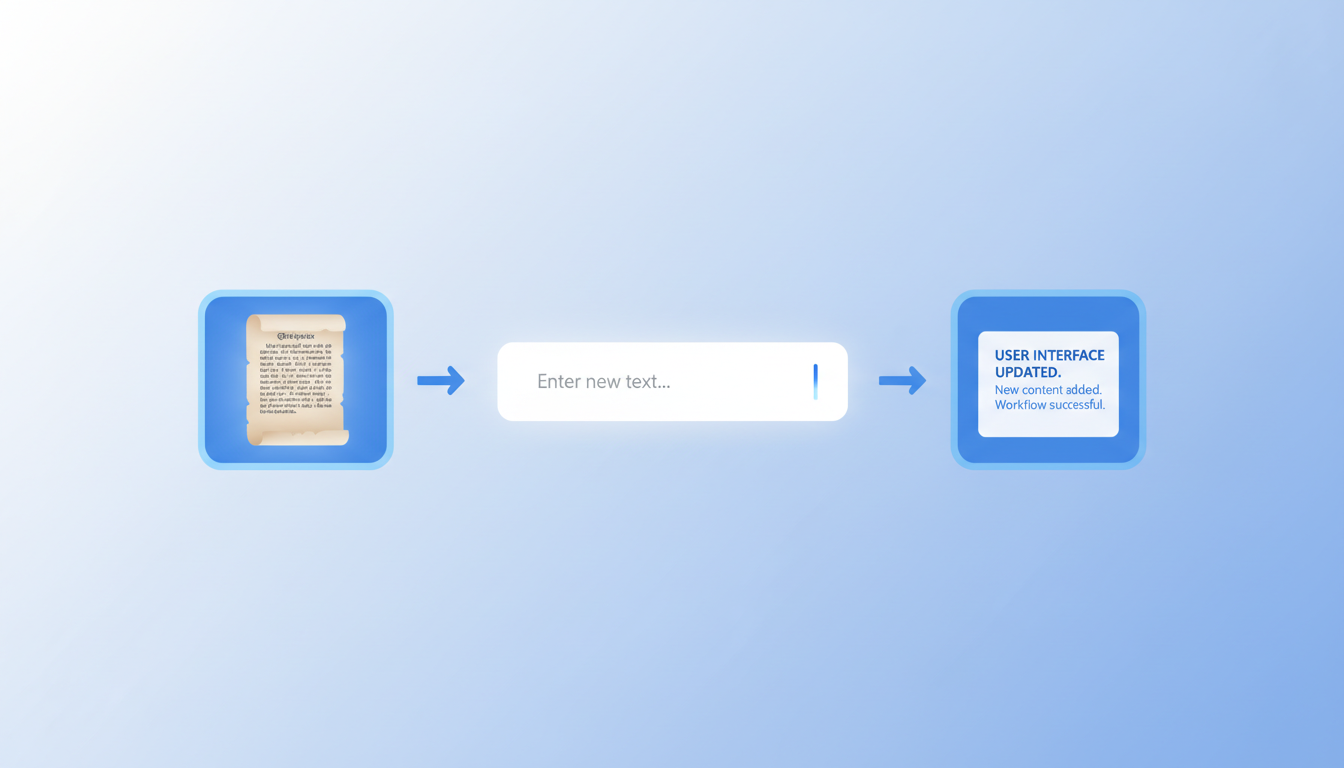
Step-by-Step Guide: How to Edit Text in Images with Haimeta
Using the AI Text In Image Modifier created by Haimeta is a straightforward process. Follow these steps to achieve professional results in seconds.
Step 1: Upload Your Image
Navigate to the tool interface. You will be greeted by a clean, user-friendly workspace. Upload the image containing the text you wish to modify. The tool supports various high-resolution formats, ensuring your final output remains crisp.
Step 2: Input Your Command
This is where the magic happens. You do not need to manually select the text area or draw masks. In the input box provided, simply describe the change you want to make.
- Example Prompt: "Replace the text 'Summer Sale' on the sign with 'Winter Clearance'."
- Example Prompt: "Change the date on the poster to '2024'."
The AI interprets natural language, understanding both what to remove and what to insert in its place.
Step 3: Select the 'Nano Banana2' Model
For the best results, you must select the correct underlying AI model. In the model selection dropdown, choose Nano Banana2.
Why Nano Banana2? This model is widely regarded as Google's latest and strongest image generation model currently available for public integration. Unlike older models that might blur text or struggle with alignment, Nano Banana2 excels at understanding the semantic structure of an image. It ensures that the generated text aligns perfectly with the stylistic nuances of the source image.
Step 4: Click Create and Wait
Once your prompt is entered and the Nano Banana2 model is selected, click the Create button.
The processing time is incredibly fast—typically taking only 10 to 20 seconds. During this brief window, the AI is effectively reconstructing the reality of your image, erasing the old pixels and synthesizing new ones that match the font weight, color, and texture of the original.
Step 5: Download Your Result
The final output will display the modified image. You will notice that the font style is consistent with the original. If the original text was handwritten, the AI attempts to match that handwriting. If it was a neon sign, the new text will glow.
Why This Technology is a Game Changer
The ability to edit text in image files so effortlessly has profound implications for various industries.
1. Global Marketing Localization
International brands often struggle with localizing assets. A banner created for the US market needs to be translated for campaigns in France, Japan, or Brazil. Using Haimeta's tool, a marketer can upload the master creative and simply prompt the AI to change the text to the local language. Because Nano Banana2 preserves the original aesthetic, the brand identity remains consistent across all regions without needing source files.
2. E-Commerce Updates
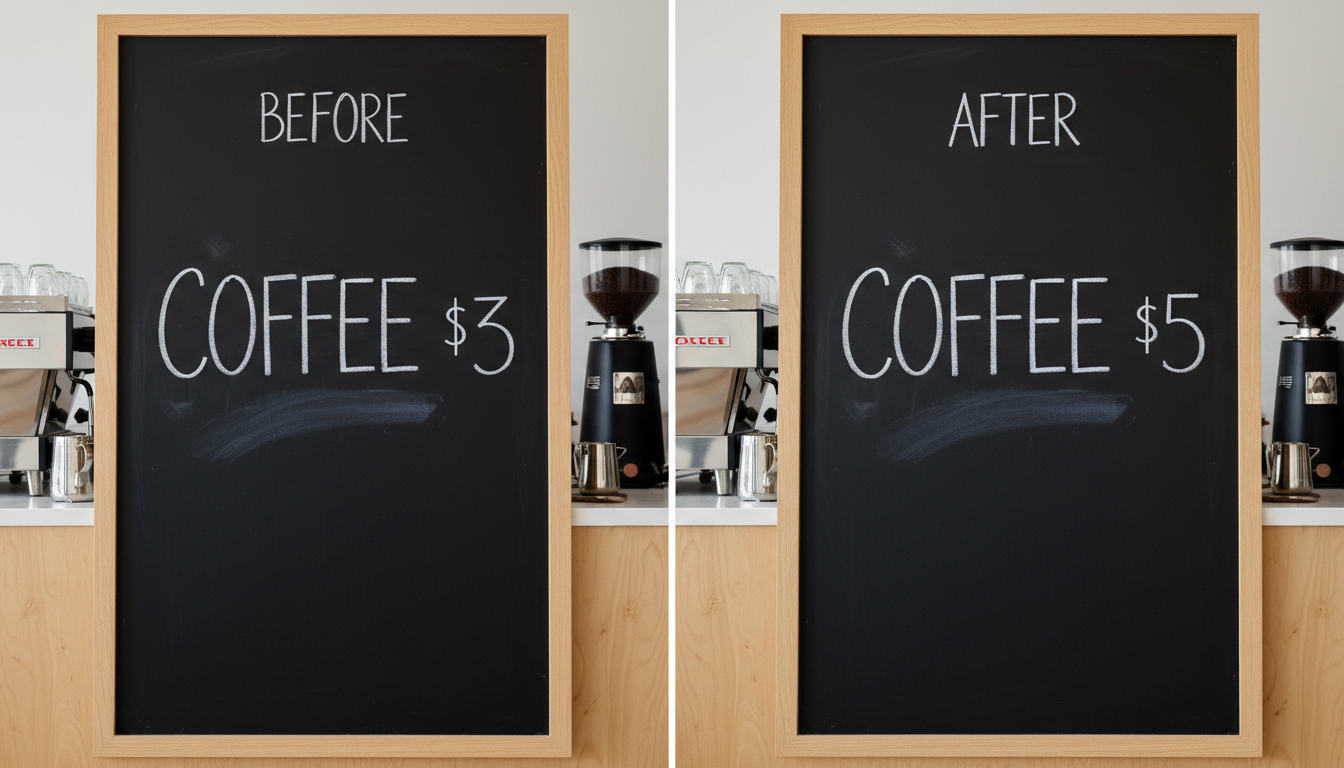
Online stores frequently change prices or discount percentages. Instead of arranging a new photoshoot or digging for the original PSD files of a promotional banner, store managers can simply upload the existing banner and update "50% Off" to "70% Off" in seconds.
3. Content Remediation
Sometimes, a perfect photo is ruined by a distraction—a brand name on a shirt that requires clearance, or a street sign with sensitive information. This tool allows for the seamless alteration of this text, either changing it to something generic or removing it entirely by replacing it with background-appropriate textures.
Deep Dive: The Power of Nano Banana2
While we do not need to understand the complex neural networks behind the scenes, it is important to understand why the Nano Banana2 model is the recommended choice within the Haimeta ecosystem.
As Google's latest and strongest image model, Nano Banana2 brings a level of "visual comprehension" that previous generations lacked. It doesn't just "paste" text on top of an image. It simulates the physics of the image.
- Texture Matching: If your text is on a rough brick wall, Nano Banana2 ensures the new text looks painted on brick, adhering to the grout lines and surface irregularities.
- Lighting Consistency: If the light source is coming from the top left, the new text will cast shadows appropriate to that direction.
- Font Matching: Perhaps the most impressive feature is the elimination of the font search. You do not need to know if the original font was Helvetica or Comic Sans. The AI analyzes the glyphs and generates new characters that fit that specific family.
Zero Skills Required: A New Era of Creativity
The most significant advantage of the AI Text In Image Modifier is the removal of the skills barrier.
- No Photoshop Skills Needed: You do not need to understand layers, blending modes, or kerning.
- No Font Libraries Needed: You do not need to purchase or install fonts.
- No Design Theory Needed: The AI handles the composition and balance for you.
This democratizes high-quality design, allowing social media managers, small business owners, and writers to modify visual assets independently, without waiting on a graphic design team.
Conclusion
The demand to edit text in image content is universal, but the tools to do so have historically been exclusive to professionals. Haimeta has bridged this gap effectively. By combining an intuitive interface with the raw power of Google's Nano Banana2 model, they have created a tool that is not only powerful but accessible to everyone.
Whether you are correcting a typo, updating a date, or translating a global campaign, the solution is now just a prompt away. Stop wasting hours searching for fonts and masking backgrounds. Experience the future of image editing today.
Ready to transform your images?
Visit the AI Text In Image Modifier created by Haimeta and try the Nano Banana2 model for yourself. Your workflow will never be the same.