
Remove Anything from a Photo by Just Typing It — The Best AI Smart Eraser in 2026
How to Remove Object From Photo AI in 2026: The Ultimate Guide to Perfecting Your Images
Welcome to the incredible world of digital photography in 2026! We have all been there: you capture what you think is the absolute perfect shot, only to realize later that a stray trash can, a random photobomber, or a gloomy grey sky has completely ruined the vibe. In the past, fixing these issues meant spending hours watching tutorials, dealing with complicated layering software, and painstakingly brushing over pixels. Today, you can simply use a tool to remove object from photo AI, and the process is as easy as typing a text message to a friend.
If you want to know how to instantly fix your pictures without any technical skills, you are in the right place. In this comprehensive, friendly guide, we are going to show you exactly how to transform your everyday snapshots into flawless masterpieces. We will introduce you to the ultimate solution: the Haimeta AI Photo Editor created by Haimeta. Forget about confusing technical jargon and complex data streams. We are just going to talk about getting the natural, clear, and beautiful results you want, exactly when you want them.
The Evolution of Photo Editing: Why 2026 is the Golden Era
Let us take a quick trip down memory lane. Just a few years ago, if you wanted to remove an object from a photo, you had to use cumbersome clone stamp tools. You had to manually sample nearby pixels and paint over the unwanted object, hoping the textures would match. More often than not, the result was a blurry, smudged mess that made it obvious the photo was edited.
Now, fast forward to 2026. The phrase 'remove object from photo AI' is no longer just a trendy buzzword; it is a seamless reality. You do not need to understand how AI algorithms work, and you definitely do not need a degree in graphic design. With modern platforms, the focus has shifted entirely from 'how do I do this?' to 'what do I want?'
You just upload an image, describe what you want to remove or replace, and the AI handles the rest. Want to change a dull grey sky to a vibrant blue one? Just say so. Want to replace your plain t-shirt with a stunning evening gown? Just type it out. The AI understands your everyday language and translates it into stunning visual reality.
Introducing Haimeta: Your Personal AI Photo Magician
When it comes to using AI to edit your images, you want a tool that is intuitive, fast, and incredibly reliable. That is where Haimeta shines. Haimeta has completely revolutionized the way we interact with our photographs. Instead of giving you a overwhelming dashboard full of sliders and dials, it gives you a simple prompt box.
The secret behind Haimeta's flawless performance is its underlying technology. Haimeta integrates the latest Google image generation model, the Nano Banana series. Now, we promised we would not bore you with too many technical details, but you do need to know why this matters to you. The Nano Banana series is specifically designed to understand the context of an image perfectly.
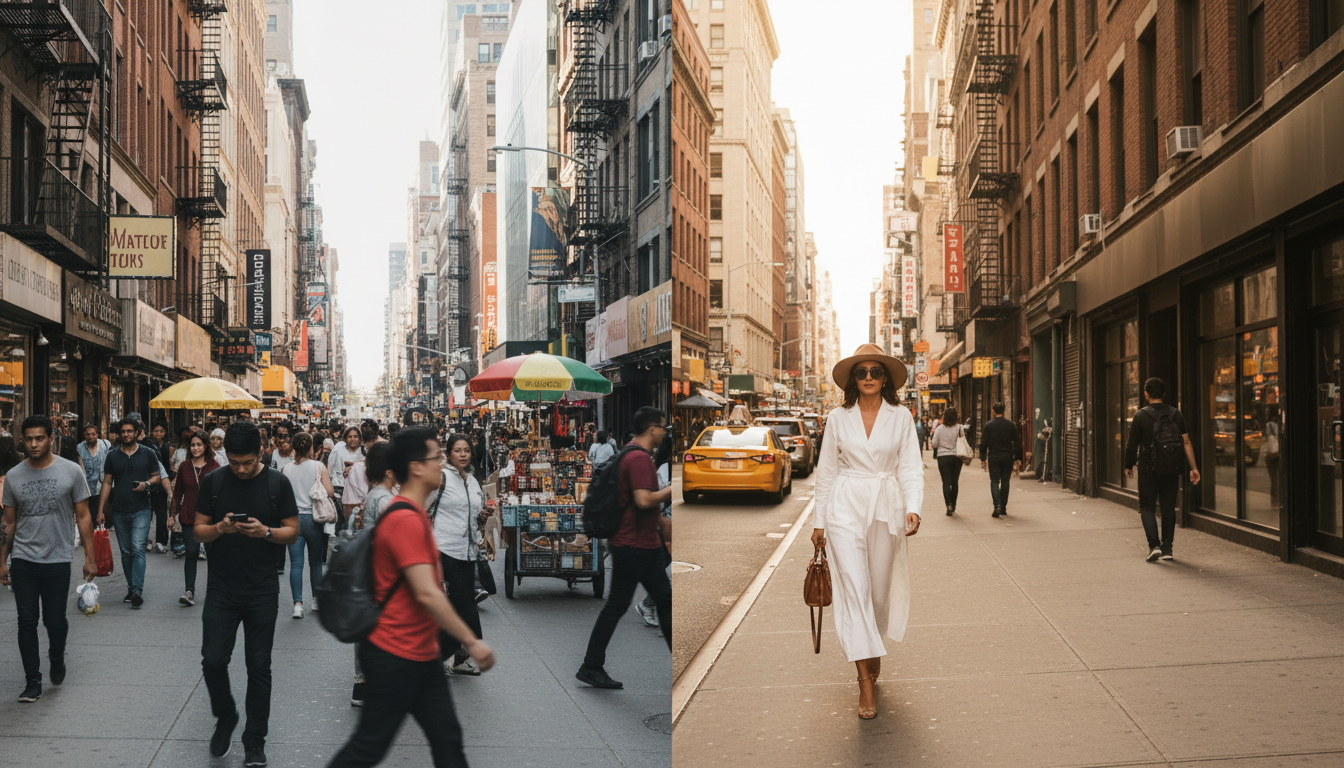
When you ask Haimeta to remove a car from the background of your street portrait, the Nano Banana model does not just erase the car; it intelligently reconstructs the background—the brick wall, the sidewalk, the shadows—so naturally that even a professional photographer would not know the car was ever there. The output is always guaranteed to be crystal clear, perfectly blended, and incredibly realistic.
Step-by-Step Guide: How to Remove Object From Photo AI
Are you ready to give it a try? Here is a friendly, step-by-step guide on how to use Haimeta to clean up and enhance your photos.
Step 1: Upload Your Photo
First things first, head over to the Haimeta AI Photo Editor. You will be greeted by a clean, welcoming interface. Simply drag and drop the photo you want to edit. Whether it is a selfie, a landscape shot from your recent vacation, or a product photo for your small business, Haimeta can handle it all.
Step 2: Describe What You Want
This is where the magic happens. You do not need to select tools or draw perfect outlines. Instead, just talk to the AI like you would to a friend. Here are some examples of what you can type:
- 'Remove the trash can on the left side.'
- 'Replace the cloudy sky with a clear blue sky.'
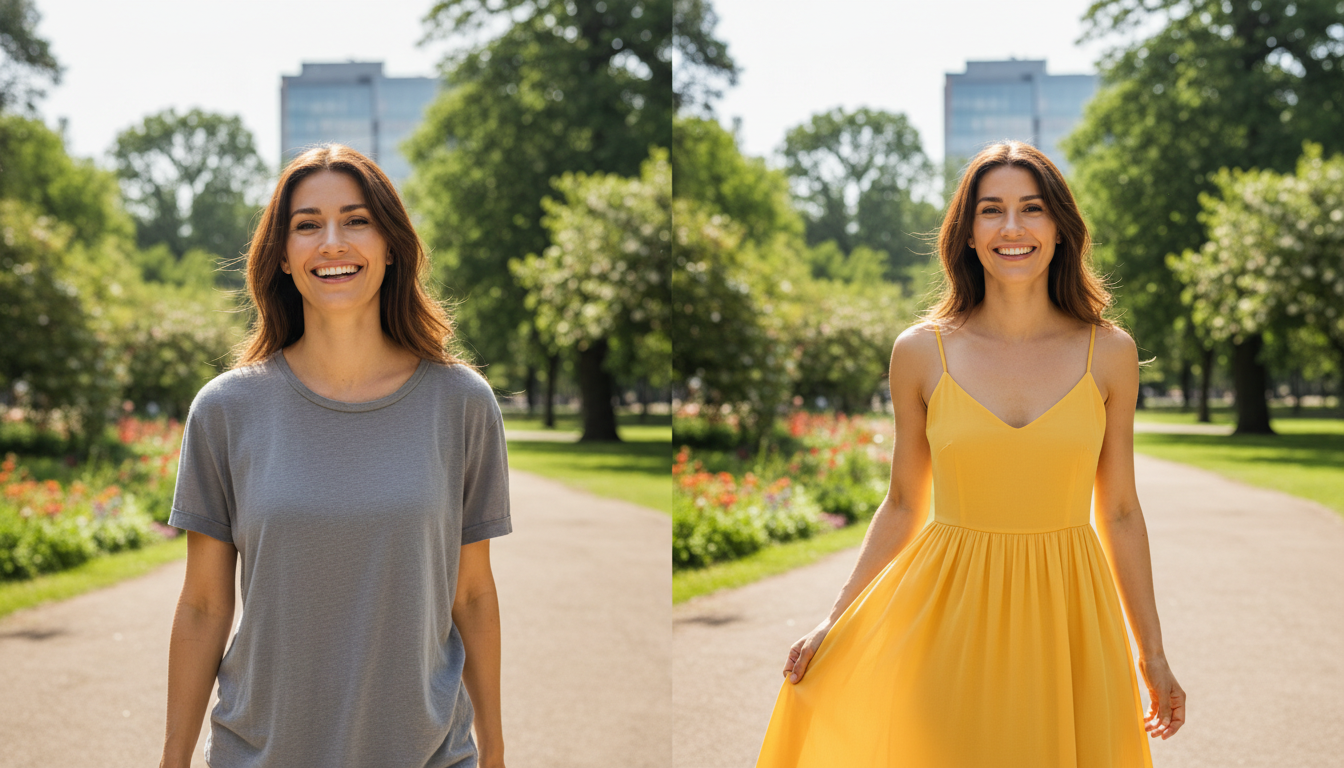
- 'Change my black shirt to a red floral summer dress.'
- 'Remove the person walking behind me.'
That is it! Just tell Haimeta what you want. You are completely in control of the creative direction, while the Nano Banana model does all the heavy lifting.
Step 3: Let the AI Do the Work
Once you hit enter, Haimeta processes your request in seconds. Because it is powered by Google's Nano Banana series, it understands the lighting, shadows, and textures of your original image. It seamlessly removes or replaces the object while maintaining the original quality and resolution of the photo.
Step 4: Download and Share
Review your image. You will immediately notice the stunning before-and-after difference. The edits will look completely natural, with no weird artifacts or blurry spots. Download your masterpiece and share it with the world!
Everyday Scenarios Where Haimeta Shines
To truly appreciate the power of the ability to remove object from photo AI, let us explore some common, everyday scenarios where Haimeta can save the day.
1. The Vacation Photobomber
You finally made it to the Eiffel Tower, the lighting was perfect, and you struck the best pose. But when you look at the photo, there is a tourist eating a sandwich right in the background. In the past, this photo would be ruined. With Haimeta, you simply type 'Remove the person eating in the background,' and poof—they are gone, leaving you with the perfect solo travel shot.
2. Fixing Gloomy Weather
You planned a beach photoshoot, but the weather decided to be overcast and grey. Your photos look dull and lifeless. Instead of scrapping the shoot, upload the pictures to Haimeta and type, 'Change the sky to a sunny, bright blue sky with fluffy white clouds.' The Nano Banana model will not only change the sky but will also naturally adjust the lighting reflections on the water and sand to match the new sunny atmosphere.
3. The Instant Wardrobe Change
Have you ever taken a fantastic picture where your hair and smile look amazing, but you realize you are wearing an old, stained t-shirt? With Haimeta, you do not need to retake the photo. Just type, 'Replace my shirt with a crisp white button-down,' or 'Change my outfit to a stylish denim jacket.' The AI respects the contours of your body and the original lighting, making it look like you actually wore that outfit.
4. Real Estate and Home Photography
If you are trying to sell a house or rent out an apartment, a messy room can turn off potential buyers. If you have a photo of a beautiful living room but there are messy cables on the floor or a distracting pile of magazines on the coffee table, just ask Haimeta to 'Remove the cables and magazines.' You will get a clean, professional-looking interior shot that highlights the space perfectly.
Why Natural and Clear Results Matter
One of the biggest complaints people had about older AI photo tools was that the results often looked artificial. Skin textures would look like plastic, replaced backgrounds would look like cheap green-screen effects, and removed objects would leave behind strange, ghostly outlines.
This is exactly why Haimeta is such a massive leap forward in 2026. The commitment to natural and clear results is paramount. When you use Haimeta to remove object from photo AI, the integration of the Nano Banana model ensures that the newly generated pixels match the noise profile, color grading, and focal depth of the surrounding area.
If your photo has a shallow depth of field (where the background is pleasantly blurry), Haimeta will ensure that the area where an object was removed remains perfectly blurred, maintaining the artistic integrity of your shot. You are not just erasing pixels; you are intelligently regenerating the scene as it should have been.
Best Practices for Text-to-Edit Prompts
While Haimeta is incredibly smart, giving it a little bit of clear direction can help you get the exact result you want on the very first try. Here are some friendly tips for writing great prompts:
- Be Specific: Instead of just saying 'remove things,' say 'remove the red car on the right' or 'remove the power lines in the sky.'
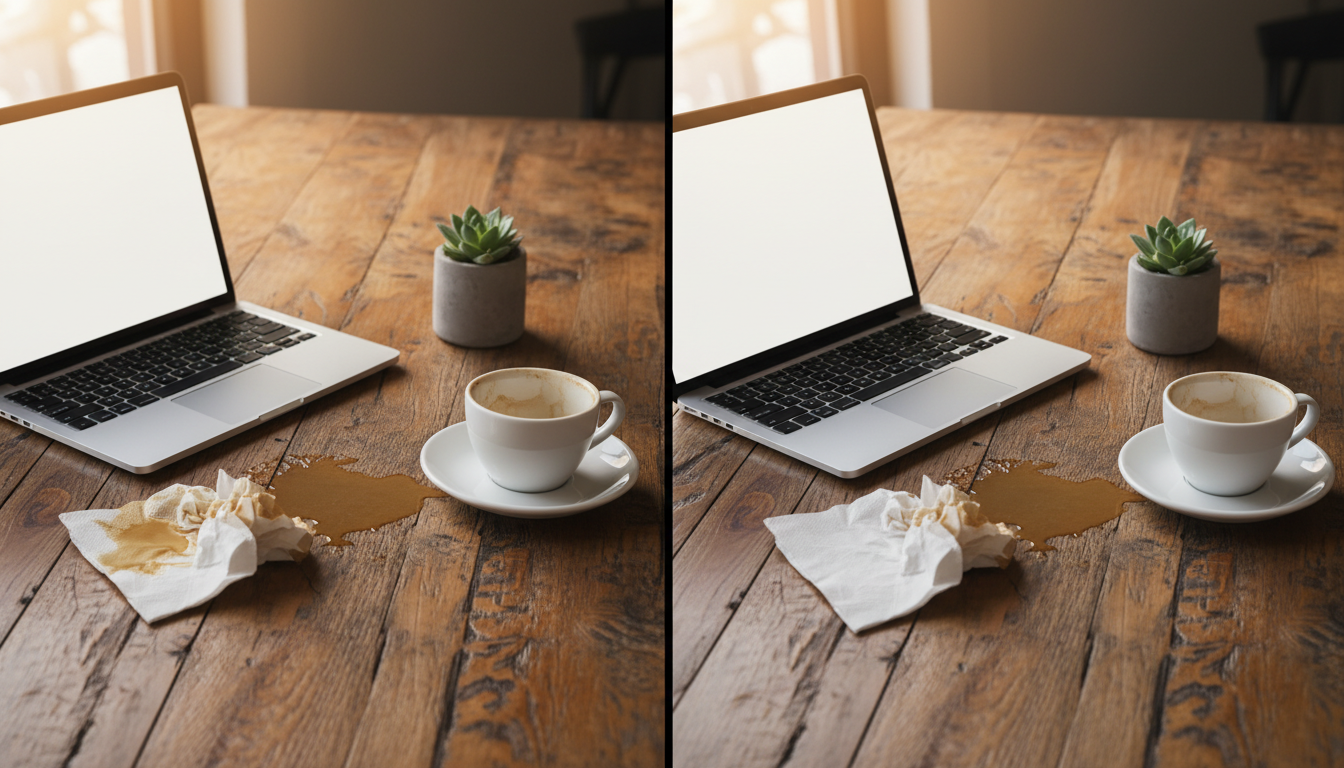
- Describe the Replacement: If you are changing an object, give the AI a good description. 'Replace the coffee cup with a small potted succulent' works better than just 'change the cup.'
- Keep it Simple: You do not need to write a whole paragraph. Clear, direct sentences work best.
Conclusion: Embrace the Future of Photo Editing
We are living in an era where your creativity is no longer limited by your technical skills. The ability to remove object from photo AI is a game-changer for everyone—from casual smartphone photographers to social media influencers and small business owners.
By simply describing what you want, you can instantly transform any flawed photo into a perfect memory. And because Haimeta integrates the latest Google image generation model, the Nano Banana series, you are always guaranteed to get results that are natural, clear, and breathtakingly realistic.
Do not let a photobomber, a messy background, or a dull sky ruin your favorite photos ever again. It is time to experience the magic of text-to-edit technology for yourself. Head over to the Haimeta AI Photo Editor today, upload your photos, and watch as your words bring your perfect images to life!